
If you own a compact Brother wireless laser printer—such as the Brother HL-1210W, HL-1110W, HL-L2300D/W, or any model built around Brother’s NC-8400w / NC-8000w embedded 802.11b/g/n network card—you have probably experienced this maddening scenario:
- The printer is turned on, sitting right next to your router with a solid green Ready LED.
- Windows shows the printer as
Offline. - Pinging the printer’s IP address returns
Destination host unreachable(ARP state:Unreachable). - Even scanning your entire local subnet (
192.168.x.1–254) confirms the printer hasn’t simply picked up a new DHCP address—it has completely vanished from Layer 3.
Instead of endlessly power-cycling the printer every few days, I decided to inspect both the Windows Print Spooler / WSD stack and the printer’s embedded network firmware. What I found was a two-headed bug—and thankfully, both halves can be permanently fixed in 10 seconds with a single script (complete with a 1-command rollback to factory defaults and manufacturer hardware reset instructions).
1. The Smoke: Wireless Link OK, IP Address [Blank]
On the Brother HL-1210W, pressing the Power/Start button 3 times rapidly prints the internal 3-page PRINTER SETTINGS diagnostic report. Printing this report while the printer was turned on—yet completely unreachable on the network—revealed the exact state of the internal network card on Page 3 (<<NETWORK CONFIGURATION>>):
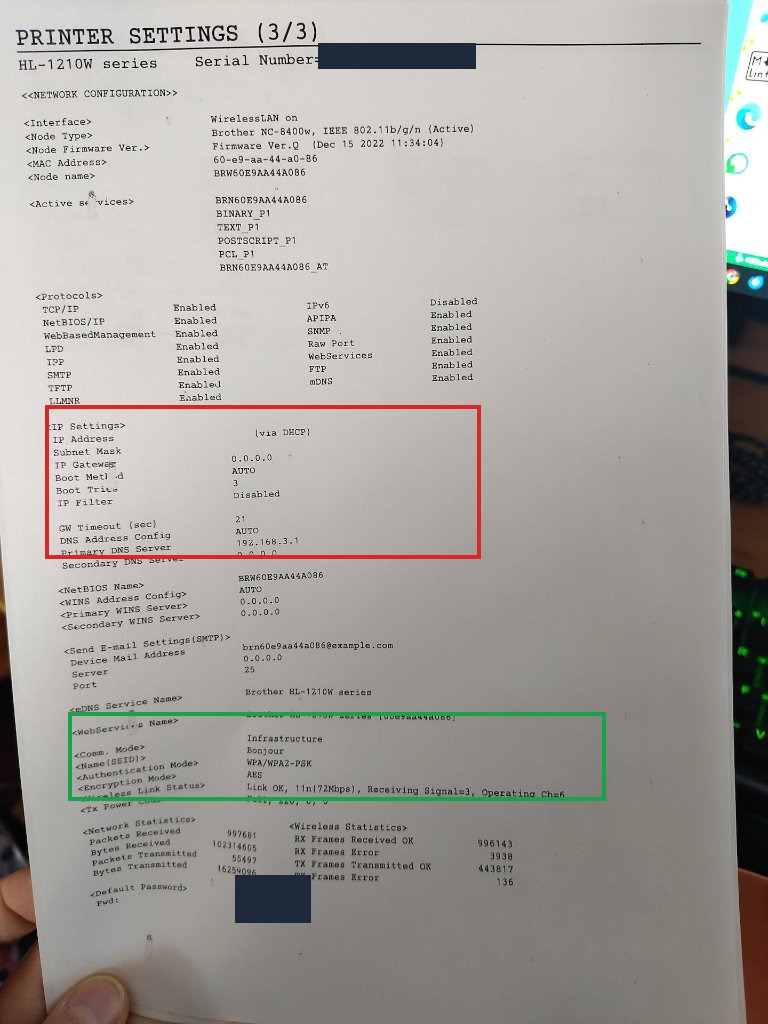
Here is the exact transcription of the diagnostic printout:
<Interface>             WirelessLAN on
<Node Type>             Brother NC-8400w, IEEE 802.11b/g/n (Active)
<Node Firmware Ver.>    Firmware Ver.Q

<IP Settings>
IP Address                              (via DHCP)
Subnet Mask
IP Gateway              0.0.0.0
Boot Method             AUTO
Boot Tries              3
Primary DNS Server      192.168.3.1

<Comm. Mode>            Infrastructure
<Authentication Mode>   WPA/WPA2-PSK
<Encryption Mode>       AES
<Wireless Link Status>  Link OK, 11n(72Mbps), Receiving Signal=3, Operating Ch=6
Compare <Wireless Link Status> (green box) against <IP Settings> (red box):
- Layer 2 (Wi-Fi 802.11n) is completely healthy: The printer is associated with the 2.4 GHz access point on Channel 6 at 72 Mbps (
Link OK). - Layer 3 (TCP/IPv4) has crashed and zeroed itself out:
IP AddressandSubnet Maskare literally blank,IP Gatewayis0.0.0.0, whilePrimary DNS Serverstill holds192.168.3.1from its previous lease!
Why Does the Brother NC-8400w Wipe Its Own IP Address?
The Brother HL-1210W uses a 2.4 GHz-only (802.11b/g/n) radio paired with an embedded TCP/IP stack (Firmware Ver.Q). On modern dual-band or tri-band Wi-Fi 6 / Wi-Fi 7 routers, four things combine to break it:
- Deep Sleep & Dual-Band Radio Cycling / WPA2 Re-Keying: When the printer enters Deep Sleep, or when a modern router briefly steers bands or rotates WPA2 Group Temporal Keys (GTK) on the 2.4 GHz radio, the printer triggers a DHCP lease renewal or link renegotiation.
- The
Boot Tries: 3Trap: By default,Boot Methodis set toAUTOwithBoot Tries = 3. If the printer’s DHCP renewal (DHCPDISCOVER/DHCPREQUEST) does not complete within those 3 rapid attempts while the 2.4 GHz link is re-handshaking, the DHCP client gives up. - Zeroing the Stack Without Retry: Even though
APIPAis markedEnabled, instead of keeping its last valid lease or scheduling a background DHCP backoff timer, theNC-8400wzeroes out its IP address and subnet mask (0.0.0.0) and stays there indefinitely—associated to Wi-Fi at Layer 2, but unreachable on any IP port (80,515,631,9100) or via mDNS/NetBIOS. - The 1-Hour
Auto Power OffDefault: Out of the box, the printer is also configured to triggerAuto Power Offafter 1 hour of inactivity, shutting down the network card instead of staying in low-power network standby (Sleep).
2. Another Culprit: Windows WSD (Web Services for Devices)
Even when the printer does have a valid IP address, Windows 10 and Windows 11 automatically register network printers on a WSD Port (WSD-xxxxxxxx-xxxx-xxxx-xxxx-xxxxxxxxxxxx pointing to http://<ip>:80/WebServices/Device).
WSD relies on multicast discovery packets (UDP 3702 / WS-Discovery). If your PC is connected to a 5 GHz or 6 GHz SSID and the printer is on the 2.4 GHz radio—or if the printer takes two seconds to wake from sleep when Windows queries it—Windows marks the WSD device as Offline and refuses to send the print job that would otherwise wake the printer up.
Even if you manually create a Standard TCP/IP port in Windows, Windows enables SNMP Status Enabled by default (UDP 161). If the printer fails to answer an SNMP poll fast enough while sleeping, Windows still blocks the print queue as Offline.
3. The Fix (Firmware NVRAM + Windows Print Stack)
To make a Brother Wi-Fi printer 100% reliable, we need to change three settings inside the printer’s NVRAM (via its Embedded Web Server) and one setting in Windows:
| Layer / Component | Default (Buggy) Setting | Hardened Setting | Why It Fixes the Bug |
|---|---|---|---|
| Printer TCP/IP Boot Method | AUTO (DHCP, 3 tries) |
STATIC (Fixed IP / Mask / Gateway) |
Bypasses the buggy DHCP state machine so the printer never wipes its IP to 0.0.0.0 on wake-up or Wi-Fi re-keying. |
| Printer DNS Method | AUTO |
STATIC (Router IP + 1.1.1.1) |
Prevents DNS config drift when switching away from DHCP. |
| Printer Auto Power Off | 1 hour |
Off (Uses Sleep mode instead) |
Keeps the Wi-Fi card listening on TCP 9100 in low-power Sleep (~0.8W) instead of powering down after 60 minutes. |
| Windows Print Port | WSD-... (Multicast) |
Standard TCP/IP (RAW 9100, SNMP=False) |
Sends print streams directly to port 9100 and disables SNMP status polling so Windows never falsely flags the queue Offline. |
4. Automated 1-Command PowerShell Fixer & Rollback Script (Fix-BrotherPrinter.ps1)
Instead of clicking through 20-year-old HTML frames in the printer’s web interface and digging through legacy Windows Print Management dialogs, here is a standalone PowerShell script that automates both the printer NVRAM hardening and the Windows TCP/IP port migration—and includes a -RevertToDefault switch to roll everything back to factory defaults whenever you want.
Step 0: If Your Printer Is Currently Stuck at 0.0.0.0
- Unplug the power cable from the back of the printer for 10 seconds, then plug it back in (tapping the soft power button only toggles Standby and does not reset the
NC-8400wnetwork stack). - Wait 30 seconds for it to boot and grab a fresh DHCP lease.
- Look at the bottom of your 3x-Power-button Network Configuration printout to find your printer’s admin password under
<Default Password> Pwd:(or useaccesson older firmware).
Step 1: Run Fix-BrotherPrinter.ps1 (Harden or Revert to Default)
Save the script below as Fix-BrotherPrinter.ps1:
To apply the permanent hardening fix:
.\Fix-BrotherPrinter.ps1 -PrinterIP "192.168.3.8" -AdminPassword "YOUR_PRINTER_PASSWORD"To revert all printer & Windows settings back to factory defaults (-RevertToDefault):
.\Fix-BrotherPrinter.ps1 -PrinterIP "192.168.3.8" -AdminPassword "YOUR_PRINTER_PASSWORD" -RevertToDefaultFull PowerShell Script (Fix-BrotherPrinter.ps1):
<#
.SYNOPSIS
    Permanent Network & Windows Print Stack Fixer (and Rollback Tool) for Brother HL-1210W / NC-8400w Printers.

.DESCRIPTION
    Resolves (or reverts) the two root causes of Brother wireless printers randomly showing "Offline":
    1. Embedded Firmware Bug (Brother NC-8400w / HL-1210W):
       - Default Mode: Locks Boot Method to STATIC, sets Static DNS, and disables 1-hour Auto Power Off
         so the printer stays in low-power Sleep mode with its Wi-Fi stack active.
       - Revert Mode (-RevertToDefault): Restores Boot Method to AUTO (DHCP), Boot Tries to 3, DNS Method
         to AUTO, and Auto Power Off to 1 hour.
    2. Windows Print Stack:
       - Default Mode: Creates a Standard TCP/IP Port (RAW 9100, SNMP=False) and binds the Brother queue.
       - Revert Mode (-RevertToDefault): Rebinds the Windows print queue back to its WSD port (if present).

.PARAMETER PrinterIP
    The IPv4 address of the Brother printer (e.g., 192.168.3.8).

.PARAMETER AdminPassword
    The printer's Embedded Web Server password (printed at the bottom of the 3x Power-button Network
    Configuration Report under "<Default Password> Pwd:", or "access" on older firmware).

.PARAMETER RevertToDefault
    Switch to restore the printer's network settings and Windows port back to factory defaults.

.EXAMPLE
    .\Fix-BrotherPrinter.ps1 -PrinterIP "192.168.3.8" -AdminPassword "YOUR_PRINTER_PASSWORD"

.EXAMPLE
    .\Fix-BrotherPrinter.ps1 -PrinterIP "192.168.3.8" -AdminPassword "YOUR_PRINTER_PASSWORD" -RevertToDefault
#>
[CmdletBinding()]
param(
    [Parameter(Mandatory = $true, HelpMessage = "IPv4 address of the Brother printer")]
    [ValidatePattern('^\d{1,3}(\.\d{1,3}){3}$')]
    [string]$PrinterIP,

    [Parameter(Mandatory = $true, HelpMessage = "Admin password from the printer's Network Config page (or 'access')")]
    [string]$AdminPassword,

    [string]$SubnetMask = "255.255.255.0",
    [string]$Gateway = "",
    [string]$PrimaryDNS = "",
    [string]$SecondaryDNS = "1.1.1.1",
    [string]$PrinterName = "",

    [switch]$RevertToDefault
)

$ErrorActionPreference = "Stop"

$octets = $PrinterIP.Split('.')
if ([string]::IsNullOrWhiteSpace($Gateway)) {
    $Gateway = "$($octets[0]).$($octets[1]).$($octets[2]).1"
}
if ([string]::IsNullOrWhiteSpace($PrimaryDNS)) {
    $PrimaryDNS = $Gateway
}

Write-Host "`n==================================================================" -ForegroundColor Cyan
if ($RevertToDefault) {
    Write-Host " Brother HL-1210W / NC-8400w — Factory Default Rollback" -ForegroundColor Yellow
} else {
    Write-Host " Brother HL-1210W / NC-8400w — Network & Windows Stack Hardener" -ForegroundColor Cyan
}
Write-Host "==================================================================`n" -ForegroundColor Cyan

# ---------------------------------------------------------------------------
# STEP 1: Verify Network Reachability
# ---------------------------------------------------------------------------
Write-Host "[1/3] Checking connectivity to $PrinterIP..." -ForegroundColor Cyan
if (-not (Test-Connection -ComputerName $PrinterIP -Count 2 -Quiet -ErrorAction SilentlyContinue)) {
    throw "Printer at $PrinterIP is unreachable. Unplug its power cord for 10 seconds, plug it back in, wait 30s, and re-run."
}
Write-Host "  [+] Printer is reachable at $PrinterIP." -ForegroundColor Green

# ---------------------------------------------------------------------------
# STEP 2: Authenticate to Brother Embedded Web Server (EWS)
# ---------------------------------------------------------------------------
Write-Host "[2/3] Authenticating to Brother Embedded Web Server (http://$PrinterIP)..." -ForegroundColor Cyan
$statusUrl = "http://$PrinterIP/general/status.html"
$r1 = Invoke-WebRequest -Uri $statusUrl -SessionVariable ews -UseBasicParsing -TimeoutSec 10

if ($r1.Content -match 'type="password"[^>]*name="([^"]+)"') {
    $pwdField = $matches[1]
} else {
    throw "Could not detect login password field on $statusUrl."
}

$rLogin = Invoke-WebRequest -Uri $statusUrl -Method Post -WebSession $ews -UseBasicParsing -TimeoutSec 10 -Body @{
    $pwdField  = $AdminPassword
    "loginurl" = "/general/status.html"
}
if ($rLogin.Content -notmatch '/net/net/net\.html') {
    throw "Authentication failed. Check the password printed at the bottom of your 3x-Power-button Network Config report."
}
Write-Host "  [+] Authenticated successfully (field: $pwdField)." -ForegroundColor Green

if (-not $RevertToDefault) {
    # --- HARDEN MODE ---
    # 1. Lock TCP/IP Wireless Boot Method to STATIC (B128 = 7)
    Invoke-WebRequest -Uri "http://$PrinterIP/net/wireless/tcpip.html" -Method Post -WebSession $ews -UseBasicParsing -TimeoutSec 10 -Body @{
        pageid = "250"; transition = "0"
        B124 = "1"; B125 = $PrinterIP; B126 = $SubnetMask; B127 = $Gateway
        B128 = "7"; B129 = "1"; B1f9 = "0"
    } | Out-Null
    Write-Host "  [+] Boot Method locked to STATIC ($PrinterIP / $SubnetMask / GW $Gateway)." -ForegroundColor Green

    # 2. Lock DNS Server Method to STATIC (B139 = 1) & Boot Tries = 5
    Invoke-WebRequest -Uri "http://$PrinterIP/net/wireless/tcpip_detail.html" -Method Post -WebSession $ews -UseBasicParsing -TimeoutSec 10 -Body @{
        pageid = "251"; B147 = "5"; B14b = "5"
        B139 = "1"; B14c = $PrimaryDNS; B14d = $SecondaryDNS; B14e = "21"
    } | Out-Null
    Write-Host "  [+] DNS locked to STATIC ($PrimaryDNS, $SecondaryDNS)." -ForegroundColor Green

    # 3. Disable 1-Hour Auto Power Off (B1f8 = 0) so Sleep Mode keeps Wi-Fi alive
    Invoke-WebRequest -Uri "http://$PrinterIP/general/powerdown.html" -Method Post -WebSession $ews -UseBasicParsing -TimeoutSec 10 -Body @{
        pageid = "6"; postif_registration_reject = "1"; B1f8 = "0"
    } | Out-Null
    Write-Host "  [+] Auto Power Off disabled (low-power Sleep stays active)." -ForegroundColor Green

    # 4. Windows Standard TCP/IP Port (RAW 9100, SNMP=False)
    Write-Host "[3/3] Migrating Windows Print Queue from WSD to Standard TCP/IP (RAW 9100, SNMP=False)..." -ForegroundColor Cyan
    $portName = "IP_$PrinterIP"
    if (-not (Get-PrinterPort -Name $portName -ErrorAction SilentlyContinue)) {
        Add-PrinterPort -Name $portName -PrinterHostAddress $PrinterIP -PortNumber 9100
    }
    $printer = if ($PrinterName) {
        Get-Printer -Name $PrinterName -ErrorAction SilentlyContinue
    } else {
        Get-Printer | Where-Object { $_.Name -like "*Brother*" -or $_.DriverName -like "*Brother*" } | Select-Object -First 1
    }
    if ($printer) {
        Set-Printer -Name $printer.Name -PortName $portName
        Write-Host "  [+] Bound '$($printer.Name)' to '$portName' (RAW 9100, SNMP=False)." -ForegroundColor Green
    }
    Write-Host "`nDone! Your Brother printer is permanently hardened.`n" -ForegroundColor Cyan

} else {
    # --- REVERT TO DEFAULT MODE ---
    # 1. Restore TCP/IP Wireless Boot Method to AUTO (B128 = 0)
    Invoke-WebRequest -Uri "http://$PrinterIP/net/wireless/tcpip.html" -Method Post -WebSession $ews -UseBasicParsing -TimeoutSec 10 -Body @{
        pageid = "250"; transition = "0"
        B124 = "1"; B125 = $PrinterIP; B126 = $SubnetMask; B127 = $Gateway
        B128 = "0"; B129 = "1"; B1f9 = "0"
    } | Out-Null
    Write-Host "  [+] Restored Boot Method to AUTO (DHCP + APIPA)." -ForegroundColor Yellow

    # 2. Restore DNS Server Method to AUTO (B139 = 2) & Boot Tries = 3
    Invoke-WebRequest -Uri "http://$PrinterIP/net/wireless/tcpip_detail.html" -Method Post -WebSession $ews -UseBasicParsing -TimeoutSec 10 -Body @{
        pageid = "251"; B147 = "3"; B14b = "5"
        B139 = "2"; B14c = $PrimaryDNS; B14d = "0.0.0.0"; B14e = "21"
    } | Out-Null
    Write-Host "  [+] Restored DNS Server Method to AUTO (Boot Tries = 3)." -ForegroundColor Yellow

    # 3. Restore Auto Power Off to 1 hour (B1f8 = 1)
    Invoke-WebRequest -Uri "http://$PrinterIP/general/powerdown.html" -Method Post -WebSession $ews -UseBasicParsing -TimeoutSec 10 -Body @{
        pageid = "6"; postif_registration_reject = "1"; B1f8 = "1"
    } | Out-Null
    Write-Host "  [+] Restored Auto Power Off to default (1 hour)." -ForegroundColor Yellow

    # 4. Rebind Windows Printer to WSD Port if available
    Write-Host "[3/3] Reverting Windows Print Queue Port..." -ForegroundColor Cyan
    $wsdPort = Get-PrinterPort | Where-Object { $_.Name -like "WSD-*" } | Select-Object -First 1
    $printer = if ($PrinterName) {
        Get-Printer -Name $PrinterName -ErrorAction SilentlyContinue
    } else {
        Get-Printer | Where-Object { $_.Name -like "*Brother*" -or $_.DriverName -like "*Brother*" } | Select-Object -First 1
    }
    if ($printer -and $wsdPort) {
        Set-Printer -Name $printer.Name -PortName $wsdPort.Name
        Write-Host "  [+] Rebound '$($printer.Name)' back to WSD port '$($wsdPort.Name)'." -ForegroundColor Yellow
    } else {
        Write-Host "  [i] Kept current Windows port (no WSD port found to revert to)." -ForegroundColor Gray
    }
    Write-Host "`nRollback complete! Printer settings are back to factory defaults.`n" -ForegroundColor Yellow
}
5. Cross-Platform Python 3 Script (Harden & Revert for Linux / macOS / Windows)
If you use Linux or macOS—or want to harden or revert the printer’s firmware directly from a home server without PowerShell—here is the zero-dependency Python 3 equivalent (fix_brother_printer.py):
python3 fix_brother_printer.py 192.168.3.8 "YOUR_PRINTER_PASSWORD"python3 fix_brother_printer.py 192.168.3.8 "YOUR_PRINTER_PASSWORD" --revert#!/usr/bin/env python3
"""
Harden (or Revert to Default) Brother HL-1210W / NC-8400w Embedded Network Stack via HTTP.
Usage:
Harden: python3 fix_brother_printer.py 192.168.3.8 YOUR_ADMIN_PASSWORD
Revert: python3 fix_brother_printer.py 192.168.3.8 YOUR_ADMIN_PASSWORD --revert
"""
import argparse
import http.cookiejar
import re
import sys
import urllib.parse
import urllib.request
def configure_brother(
ip: str,
password: str,
netmask: str = "255.255.255.0",
gw: str = "",
revert: bool = False,
) -> None:
gw = gw or ".".join(ip.split(".")[:3] + ["1"])
cj = http.cookiejar.CookieJar()
opener = urllib.request.build_opener(urllib.request.HTTPCookieProcessor(cj))
# 1. Discover dynamic password input field name & authenticate
status_url = f"http://{ip}/general/status.html"
html = opener.open(status_url, timeout=10).read().decode("latin1")
match = re.search(r'type="password"[^>]*name="([^"]+)"', html)
if not match:
raise RuntimeError(f"Could not find login password field on {status_url}")
pwd_field = match.group(1)
login_data = urllib.parse.urlencode(
{pwd_field: password, "loginurl": "/general/status.html"}
).encode("utf-8")
res = opener.open(status_url, data=login_data, timeout=10).read().decode("latin1")
if "/net/net/net.html" not in res:
raise RuntimeError("Authentication failed: check your printer admin password.")
if not revert:
# --- HARDEN MODE ---
# Lock Boot Method = STATIC (7)
tcp_data = urllib.parse.urlencode({
"pageid": "250", "transition": "0", "B124": "1",
"B125": ip, "B126": netmask, "B127": gw,
"B128": "7", "B129": "1", "B1f9": "0",
}).encode("utf-8")
opener.open(f"http://{ip}/net/wireless/tcpip.html", data=tcp_data, timeout=10)
# Lock DNS Server Method = STATIC (1) & Boot Tries = 5
dns_data = urllib.parse.urlencode({
"pageid": "251", "B147": "5", "B14b": "5",
"B139": "1", "B14c": gw, "B14d": "1.1.1.1", "B14e": "21",
}).encode("utf-8")
opener.open(f"http://{ip}/net/wireless/tcpip_detail.html", data=dns_data, timeout=10)
# Disable 1-Hour Auto Power Off (B1f8 = 0) to keep low-power Sleep active
pwr_data = urllib.parse.urlencode({
"pageid": "6", "postif_registration_reject": "1", "B1f8": "0",
}).encode("utf-8")
opener.open(f"http://{ip}/general/powerdown.html", data=pwr_data, timeout=10)
print(f"[+] Hardened Brother printer at {ip} (Boot=STATIC, DNS=STATIC, AutoPowerOff=Off).")
else:
# --- REVERT TO FACTORY DEFAULTS MODE ---
# Restore Boot Method = AUTO (0)
tcp_data = urllib.parse.urlencode({
"pageid": "250", "transition": "0", "B124": "1",
"B125": ip, "B126": netmask, "B127": gw,
"B128": "0", "B129": "1", "B1f9": "0",
}).encode("utf-8")
opener.open(f"http://{ip}/net/wireless/tcpip.html", data=tcp_data, timeout=10)
# Restore DNS Server Method = AUTO (2) & Boot Tries = 3
dns_data = urllib.parse.urlencode({
"pageid": "251", "B147": "3", "B14b": "5",
"B139": "2", "B14c": gw, "B14d": "0.0.0.0", "B14e": "21",
}).encode("utf-8")
opener.open(f"http://{ip}/net/wireless/tcpip_detail.html", data=dns_data, timeout=10)
# Restore Auto Power Off = 1 hour (B1f8 = 1)
pwr_data = urllib.parse.urlencode({
"pageid": "6", "postif_registration_reject": "1", "B1f8": "1",
}).encode("utf-8")
opener.open(f"http://{ip}/general/powerdown.html", data=pwr_data, timeout=10)
print(f"[+] Reverted Brother printer at {ip} to factory defaults (Boot=AUTO, DNS=AUTO, AutoPowerOff=1h).")
if __name__ == "__main__":
parser = argparse.ArgumentParser(description="Harden or revert Brother HL-1210W / NC-8400w network settings.")
parser.add_argument("ip", help="IPv4 address of the Brother printer (e.g. 192.168.3.8)")
parser.add_argument("password", help="Printer EWS Admin password (or 'access')")
parser.add_argument("--netmask", default="255.255.255.0", help="Subnet mask (default: 255.255.255.0)")
parser.add_argument("--gateway", default="", help="Gateway IP (default: .1 of printer subnet)")
parser.add_argument("--revert", action="store_true", help="Revert printer settings back to factory defaults")
args = parser.parse_args()
configure_brother(args.ip, args.password, args.netmask, args.gateway, args.revert)6. Reset the Network Settings to the Factory Default (Manufacturer Procedure)
What if you move to a new house, replace your router with a different subnet (for example switching from 192.168.3.x to 192.168.1.x), and forgot to run -RevertToDefault / --revert beforehand?
Per Brother’s official documentation, you can use your machine’s Power On/Off button to reset the print server to its default factory settings. This resets all network information, such as the password and IP address (you can also reset the print server to its factory settings using BRAdmin Light, BRAdmin Professional 3, or Web Based Management):
- Make sure the power cord is plugged in, the top cover is closed, and the machine is turned off.
- While holding down
Power On/Off, open and close the top cover. - Release
Power On/Off. Make sure that all the LEDs turn off. - Press
Power On/Offsix times. - The machine will restart automatically with its network settings restored to factory defaults.
Pro-Tip: Add a DHCP Lease Reservation on Your Router Too
Even though the printer now uses Boot Method = STATIC in its NVRAM, it is good practice to also bind its MAC address to that IP address in your router’s DHCP table (or choose an IP outside your router’s dynamic DHCP pool) so the router never assigns that address to another device while the printer is powered off.
Commentaires récents